Flashing Fedora on AYANEO Pocket DS
0. Prerequisites
Windows PC
- Download and install Balena Etcher
- Download and install 7z
Linux PC
- Install
balena-etcher-electronfrom your distribution's package manager or from here - Install
zstdfrom your distribution's package manager
1. Backup ABL and flash the new ABL
- Download the latest ABL from here
- Extract the downloaded file and copy
abl_signed-SM8550.elfto the root of your Ayaneo PocketDS storage - Copy
backup_abl.shandflash_abl.shto the root of your Ayaneo PocketDS storage - In Aya settings, go to root scripts and select
backup_abl.shto backup your current ABL - From the same place, select
flash_abl.shto flash the new ABL
2. Chosing your flavor of Fedora
4 different flavors of Fedora are availble to choose from, each with its own desktop environment. You can choose the one that best suits your needs and preferences:
| Desktop Environment | Screenshot | Link to latest build |
|---|---|---|
| KDE Plasma Desktop | 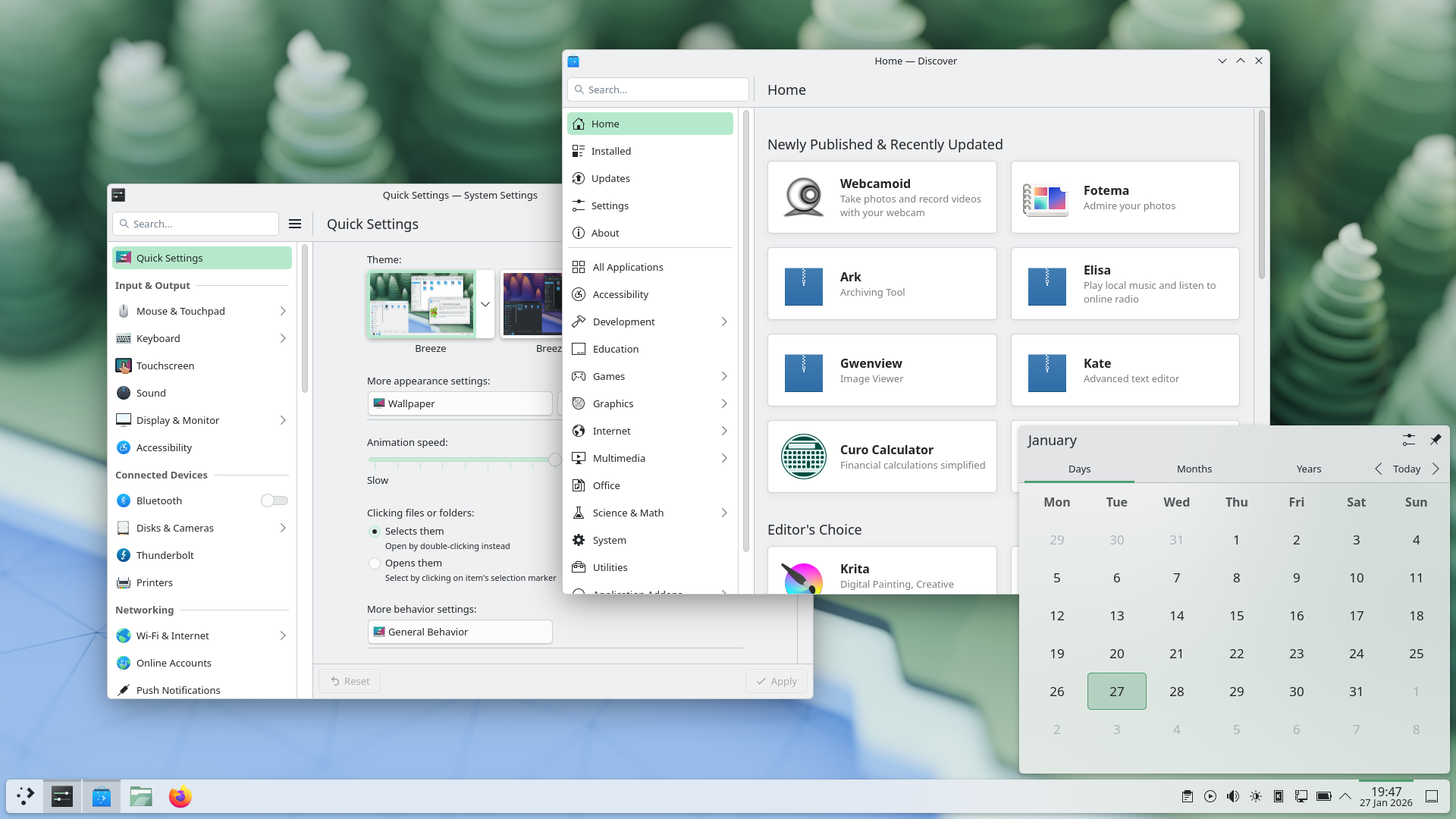 | Link to latest build |
| KDE Plasma Mobile | 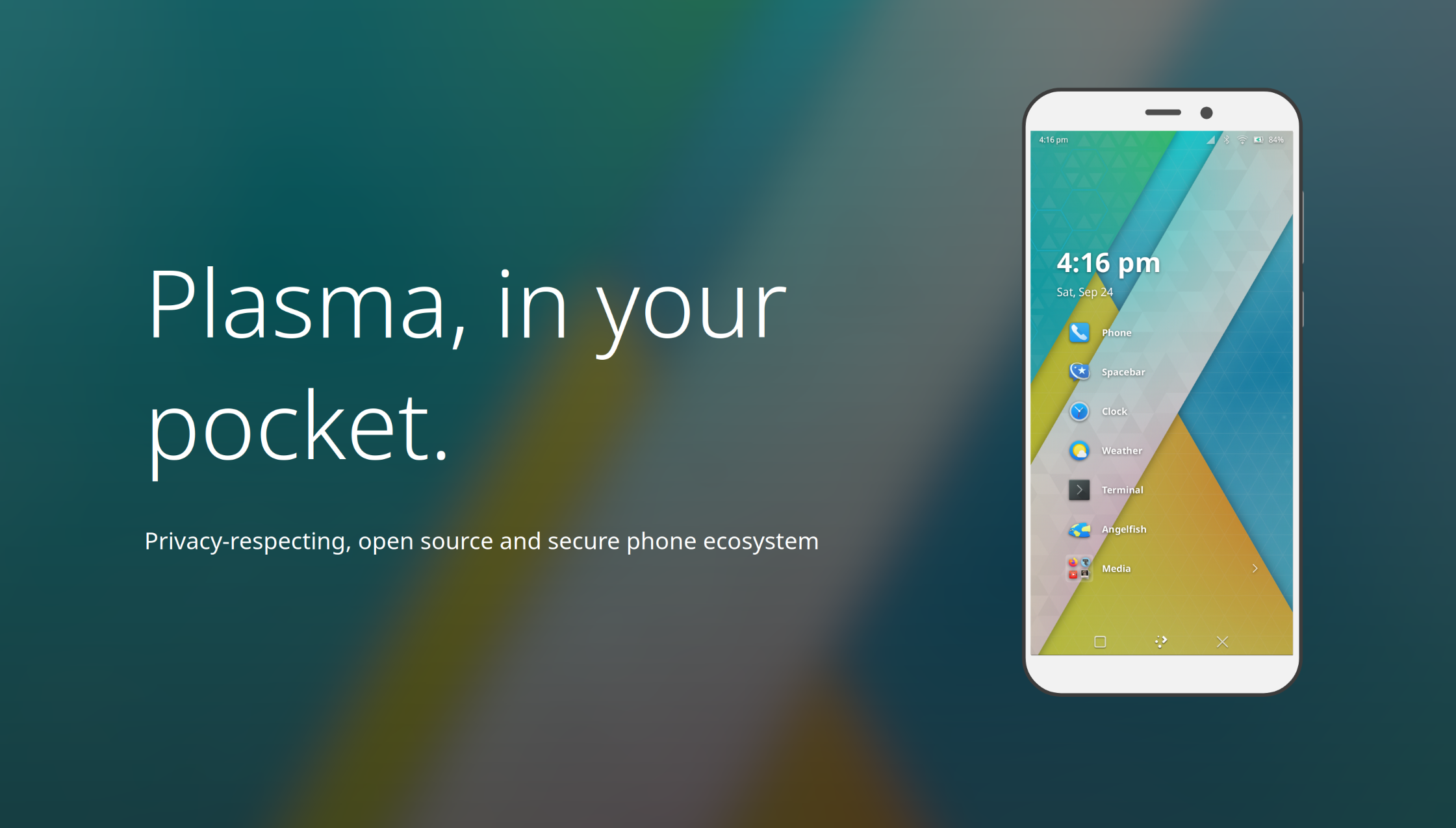 | Link to latest build |
| Gnome | 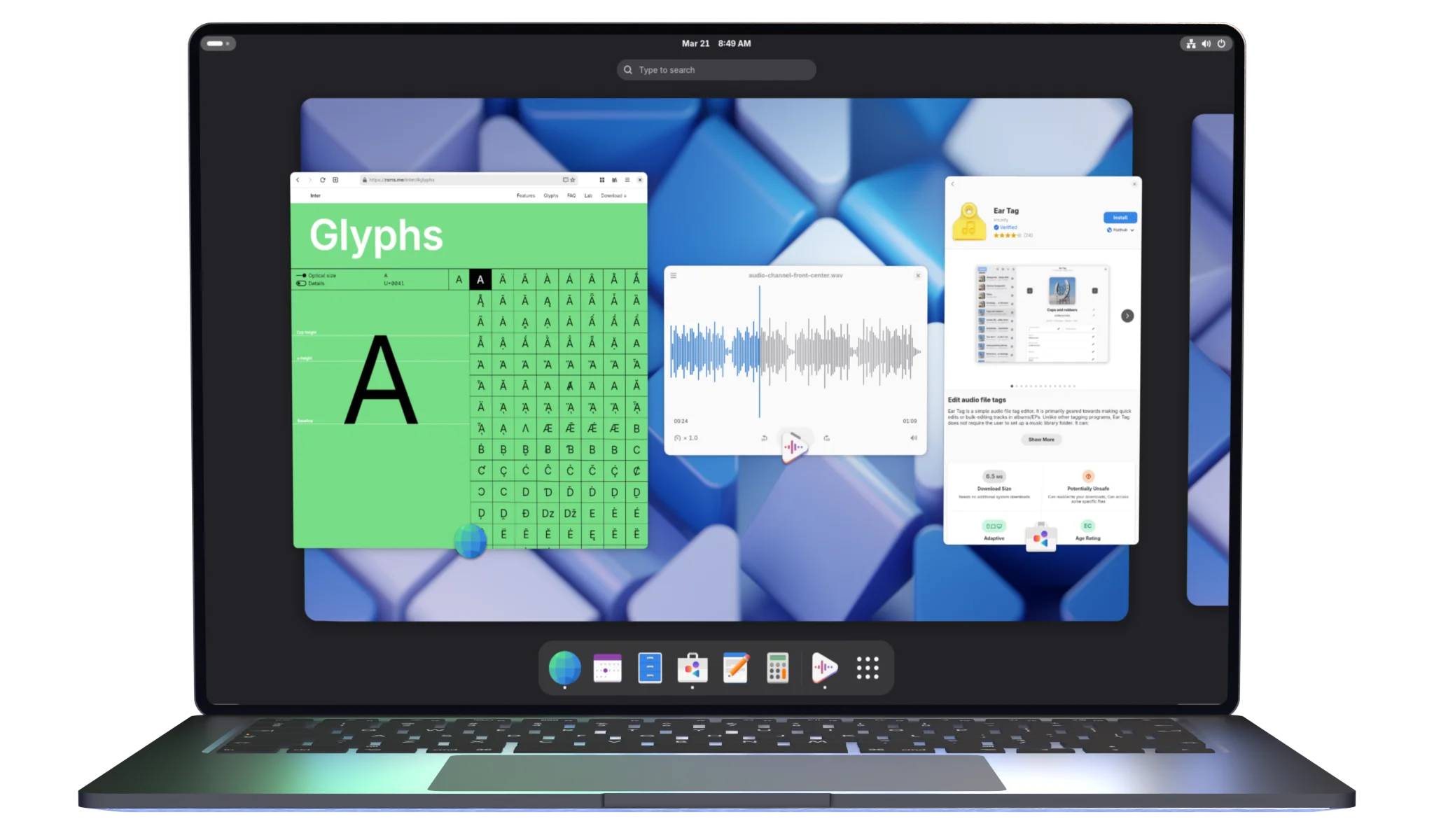 | Link to latest build |
| Phosh | 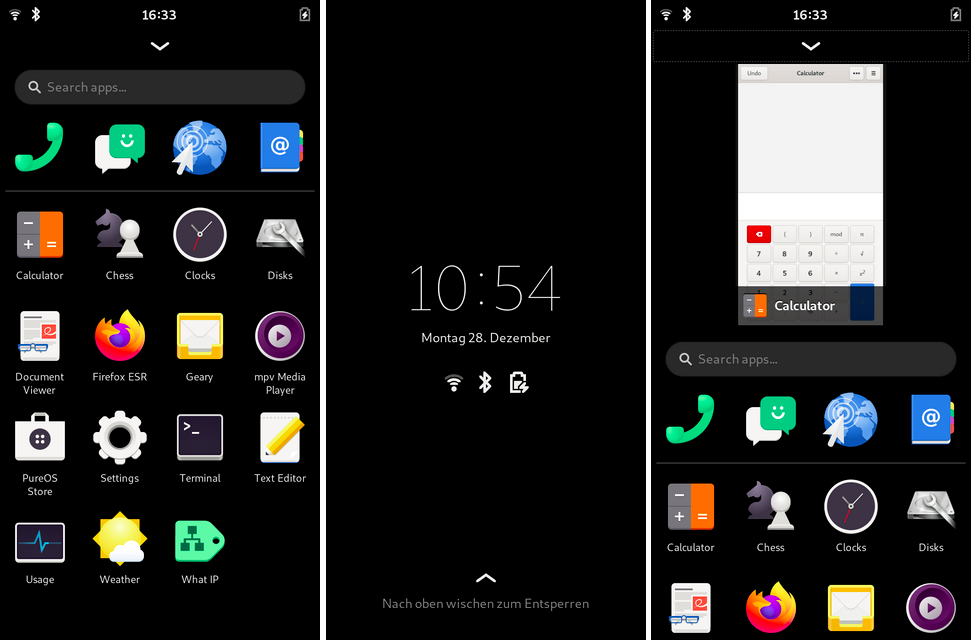 | Link to latest build |
3. Download the image and flash it
- Download the image of your chosen flavor from the links provided above
- Extract the zstd archive using 7z or any other tool that supports zstd
- Using Balena Etcher, flash the downloaded image to your Ayaneo PocketDS storage
4. Booting
- Reboot and keep pressing volume down button to enter ABL fastboot, the screen should be rotated 90 degrees left (portrait mode) indicating you are indeed using ROCKNIX ABL.
- Using Volume keys to navigate and power button to select, select "Switch boot mode" to select Linux.
- Also select "Set device model" to set the device model to "Ayaneo PocketDS".
- Finally select START to boot into Fedora. The first boot may take a while, so be patient.
5. Post installation
Default credentials are:
- Username:
pocketds - Password:
ayaneo
You should change the default password after the first login for security reasons.
6. What works and what doesn't
- Touchscreens: Works
- Buttons: Works
- Wi-Fi: Works
- Bluetooth: Works
- Speakers: Works
- Microphone: Works
- Vibration: Works
- USB-C: Works (data transfer and charging)
- Gyroscope and Accelerometer: Working
- Fingerprint sensor: Not working yet
- Hardware acceleration: Works
- Suspend and resume: Works
- Battery status: Works
- Brightness control: Works
- Volume control: Works
Credits
- ROCKNIX - For the ABL and patches, configs, kernel and overall amazing work that made it possible to run Linux on Ayaneo PocketDS
- Ayaneo - For creating the Ayaneo PocketDS
- Fedora Project - For creating and maintaining Fedora, which is the Linux distribution we are using on Ayaneo PocketDS
- xzn92 - For his initial work on getting Linux running on Ayaneo PocketDS and help